Introducing SnipLayer: Private Screen Capture and Background Removal for Windows
Why I built a local Windows capture tool that turns part of your screen into a clean, transparent cutout without uploading it anywhere.
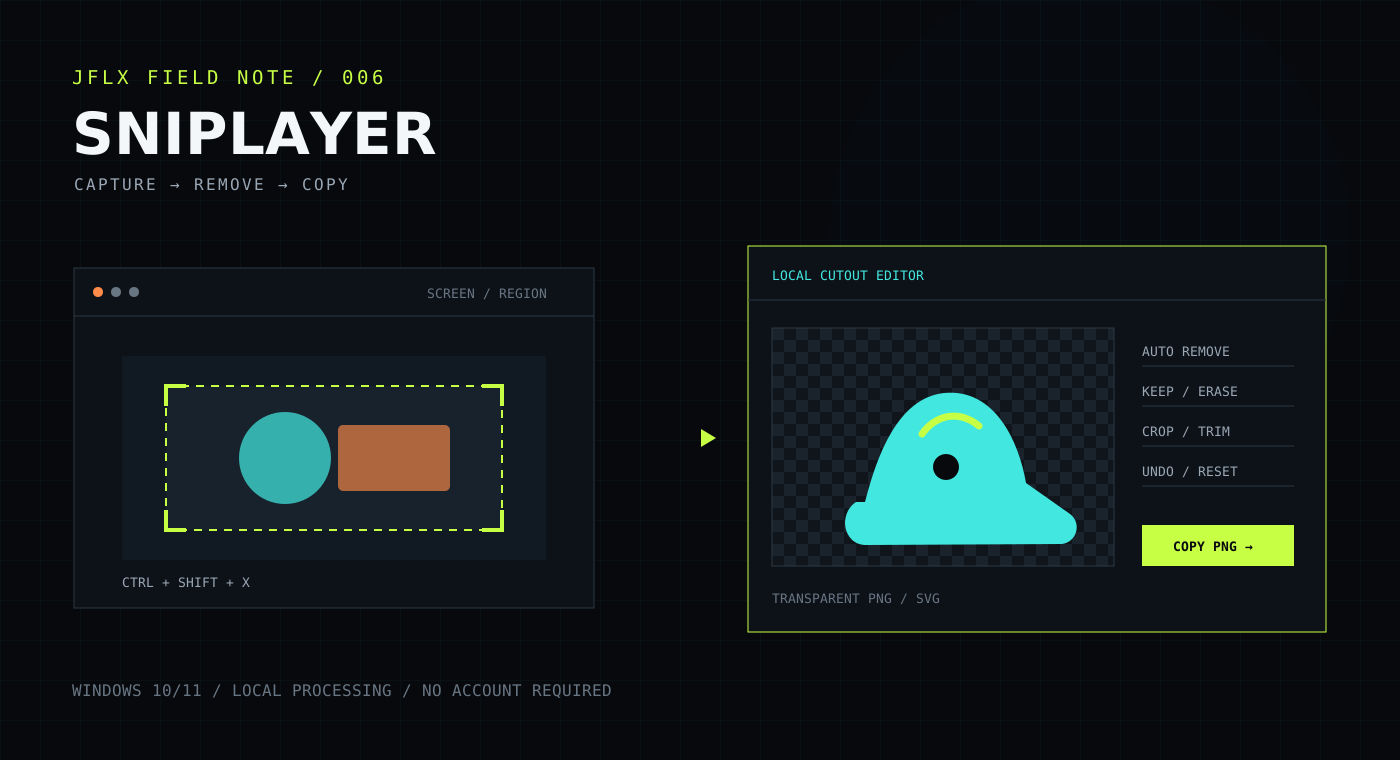
Introducing SnipLayer: Private Screen Capture and Background Removal for Windows
Taking a screenshot is easy. Turning one part of that screenshot into a clean asset is usually where the extra work begins.
You capture a region, open an editor, remove the background, repair a few edges, crop the empty space, export the result, and finally return to the thing you were working on. A quick visual explanation can turn into a chain of tools and temporary files.
That friction led me to build SnipLayer, a private Windows screen-capture app with background removal built directly into the capture workflow.
From a screen region to a reusable cutout
SnipLayer starts like a focused snipping tool. Press the configurable global shortcut (Ctrl+Shift+X by default), select any region across your monitors, and decide what should happen next.
For an ordinary screenshot, copy it directly to the clipboard. When the image needs more work, open it in the cutout editor instead. From there, SnipLayer can remove the background, refine the mask, trim transparent edges, and export the result without sending the capture through another app.
The core workflow is intentionally short:
- Select a region of the screen.
- Copy it immediately or open the cutout editor.
- Remove the background automatically or select what should be removed.
- Repair the result with Keep and Erase brushes when needed.
- Copy the transparent result or save it as PNG or SVG.
It is designed for the small images that show up constantly in real work: interface elements for documentation, product screenshots, diagrams, labels, logos, and visual references that need to sit cleanly on a different background.
Background removal that stays on the PC
Screenshots can contain customer names, internal tools, account details, private messages, or unfinished work. Uploading every capture to a remote background-removal service should not be the default cost of cleaning up an image.
SnipLayer processes screenshots and removes backgrounds locally. It does not require an account, upload captured pixels, read clipboard contents for analytics, or send usage analytics. Network access happens only when you choose to check for updates or open an external link.
That local-first approach keeps the workflow fast, but more importantly, it keeps the boundary understandable: the image you captured remains on your computer.
More control than a one-click result
Automatic removal is useful when the background is clear, but screenshots are not studio photographs. They contain anti-aliased text, thin icons, soft shadows, nested shapes, and colors that may differ by only a few values.
SnipLayer uses local color- and edge-aware processing, with extra care around thin details and enclosed letter shapes such as O, B, and P. It also works to reduce the light or dark halos that can appear around softened edges after a background is removed.
No automatic result will be right for every image, so the editor includes the controls needed to finish the job:
- Keep and Erase brushes for mask corrections
- Crop and automatic transparent-edge trimming
- Invert for backgrounds that need the opposite selection
- Reset and undo for quick experimentation
- Transparent PNG and SVG export
The SVG option embeds the finished transparent raster image rather than tracing screenshot pixels into vector paths. That distinction matters: the export is convenient for workflows that expect an SVG container, but it does not turn a screenshot into editable vector geometry.
Built for the Windows desktop
SnipLayer supports Windows 10 and Windows 11 on x64 systems. The capture overlay works across multiple monitors, and the selection region can also be adjusted from the keyboard for more precise control.
Settings let you choose the global shortcut, decide what the Enter key does after a selection, start SnipLayer with Windows, and control notifications. The installer is per-user and does not require administrator access, which makes the app easier to try on a standard Windows account.
There is also a portable build for people who prefer to run the application without installing it. For managed environments, the installer supports silent installation and uninstall switches.
What the first public release means
Version 0.3.1 is SnipLayer’s first stable public download. It includes the installer, a portable executable, and a checksum file for verifying both packages.
The app is not yet code-signed, so Windows may show an Unknown publisher or Microsoft Defender SmartScreen warning. Until production signing is in place, download SnipLayer only from the official repository and compare the file against the SHA-256 value published with the release.
I want to be direct about another boundary: the current background-removal engine is local, color- and edge-aware processing rather than semantic AI segmentation. That makes privacy and responsiveness straightforward, but it also means complex photographic scenes may need manual refinement. SnipLayer is strongest when the subject and background have a useful visual boundary, which is common in the interface and documentation work it was built around.
Download SnipLayer
SnipLayer 0.3.1 is available now for Windows 10 and Windows 11.
Download SnipLayer from GitHub →
Choose SnipLayer-Setup.exe for the recommended per-user installation or SnipLayer-Portable.exe for the self-contained build. The release also includes SHA256SUMS.txt so you can verify the download before running it.
If you find a reproducible problem, use the public issue tracker. The most useful tools tend to become clear through the edge cases, and screenshots have no shortage of interesting edges.